Publish on itch.io
Paperbox exports your visual novel as one HTML file, and itch.io plays that file in the browser. Six steps, about ten minutes.
Export your game from Paperbox
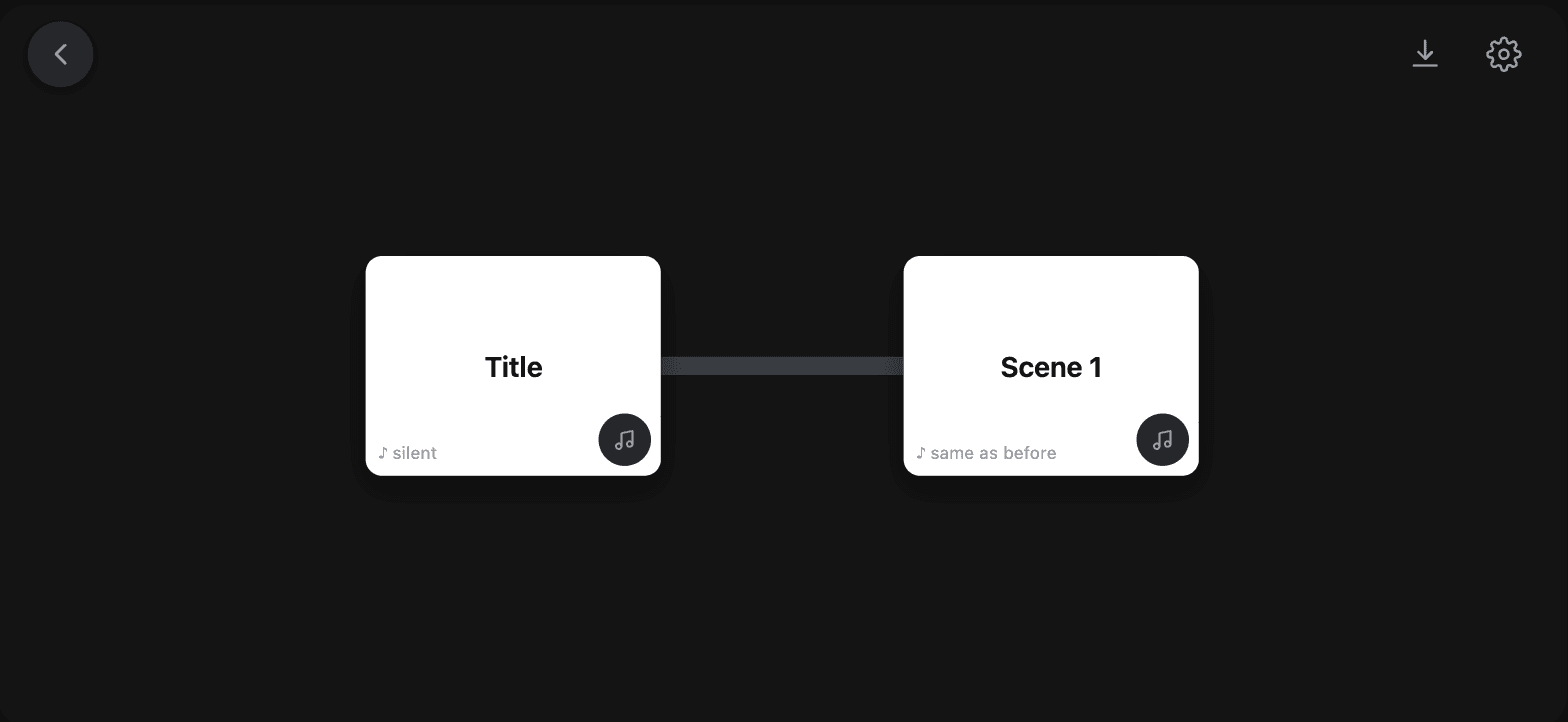
Tap the export arrow at the top of your project, press Export, then Save file. You get one .html file with the whole visual novel inside it: art, music, script, saves. Put it somewhere you can find again.
Start a new project on itch.io
Accounts are free and you do not need payment details to publish a free game. On Create a new project, fill in the title, the address it will live at, and the one-line description. All three can change later.
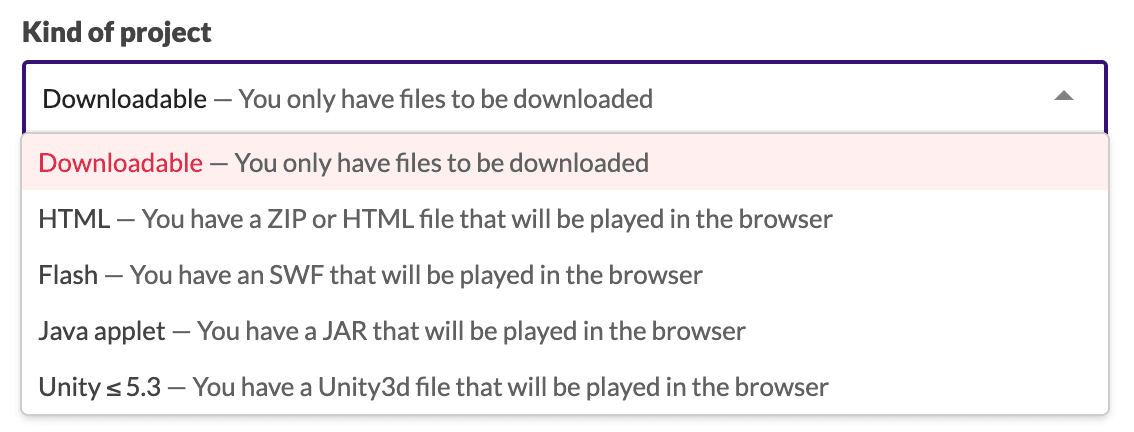
Set Kind of project to HTML
This is the setting people miss, and it is the whole difference between a game and a download. Leave it on Downloadable and your visual novel becomes a file somebody has to save and open themselves. HTML is the one that plays on the page.
Upload the .html file
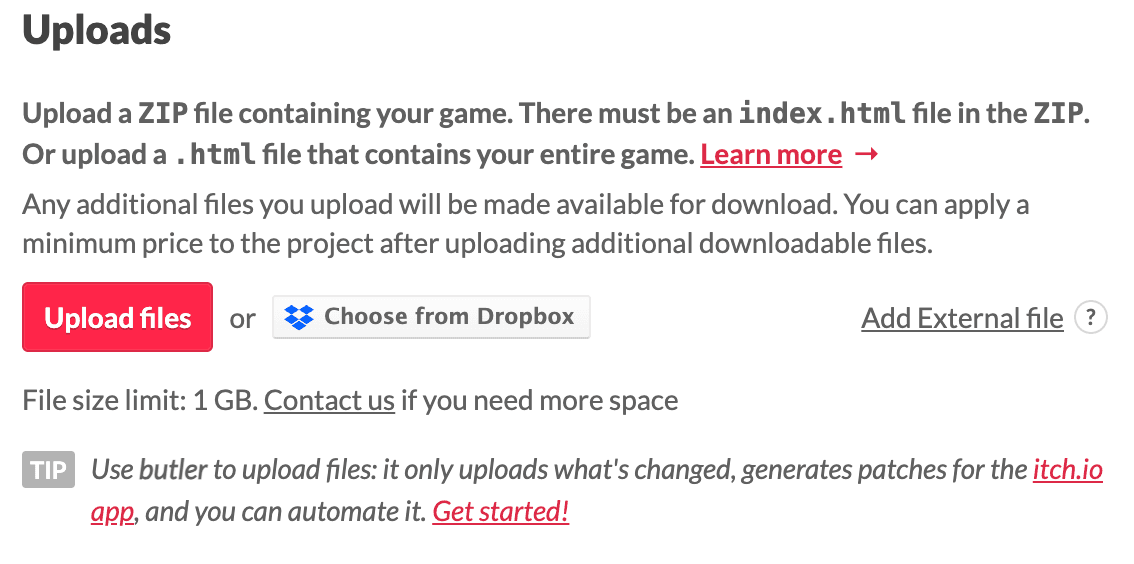
Press Upload files and give it the file Paperbox made. Nothing to zip and no folder to prepare: itch takes a single HTML file that contains your entire game, which is exactly what Paperbox exports. Their limit is 1 GB, and a Paperbox game is nowhere near it.
Set the size, and tick Mobile friendly
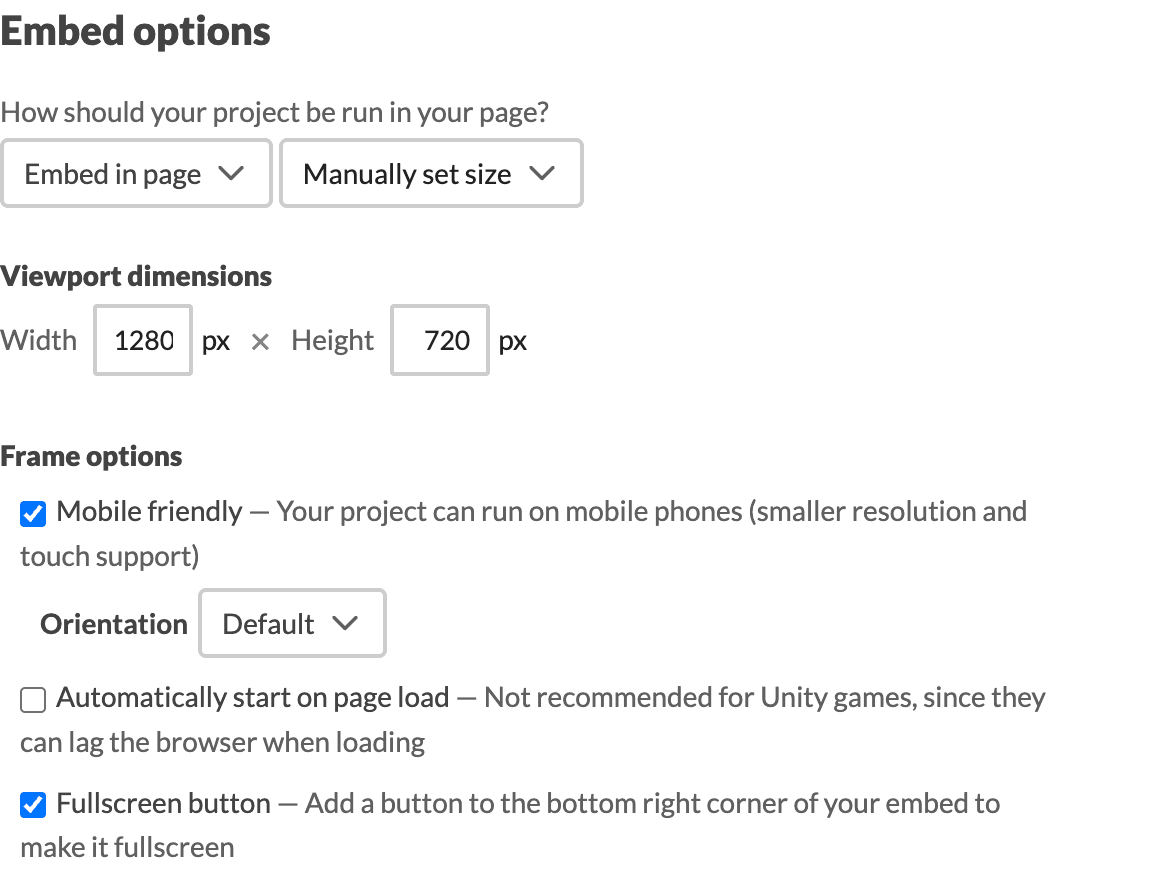
Under Embed options, put 1280 by 720 in the viewport dimensions: that is what Paperbox exports and anything else letterboxes it. Tick Mobile friendly, because a lot of people will open your page on a phone, and Fullscreen button, so they can take the whole screen.
Save as a draft, then make it public
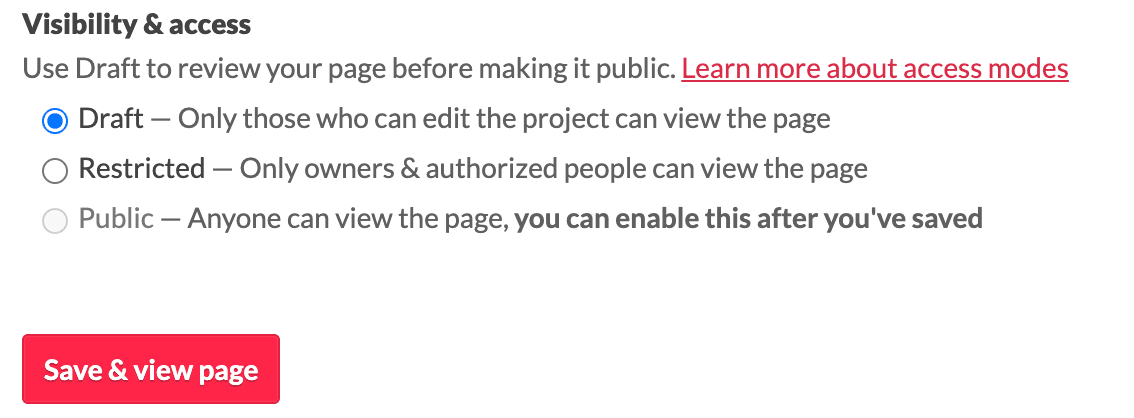
Public is greyed out until you have saved once, so this is two steps whether you want it to be or not. Press Save and view page, play your game once on the real page, then come back and set it to Public. Do not skip the playthrough: it is the only time you see what everybody else will see.
The numbers
- Cost
- Free
- File size limit
- 1 GB
- Tags
- 10 at most
- What to upload
- The .html Paperbox exports
 JOIN
JOIN